
Starting drills during a session
This guide walks through starting a drill inside an active tennis training session: finding your Tennis block on Today, entering the live session, opening Training Plan, tapping Start on a drill, using settings and Complete Drill, then reviewing Recordings and Shot Events.
Why this flow matters
Drills turn a calendar block into structured work. Starting from Today keeps practice tied to the day you planned; once the session is live, Training Plan is where you pick Serve Practice, Forehand Rally, Backhand Rally, or other drills your coach or template loaded.
From Today — your Tennis block
Open To Do, stay on the Today tab, and scroll the timeline until you see Tennis sessions (morning, afternoon, or evening rows).
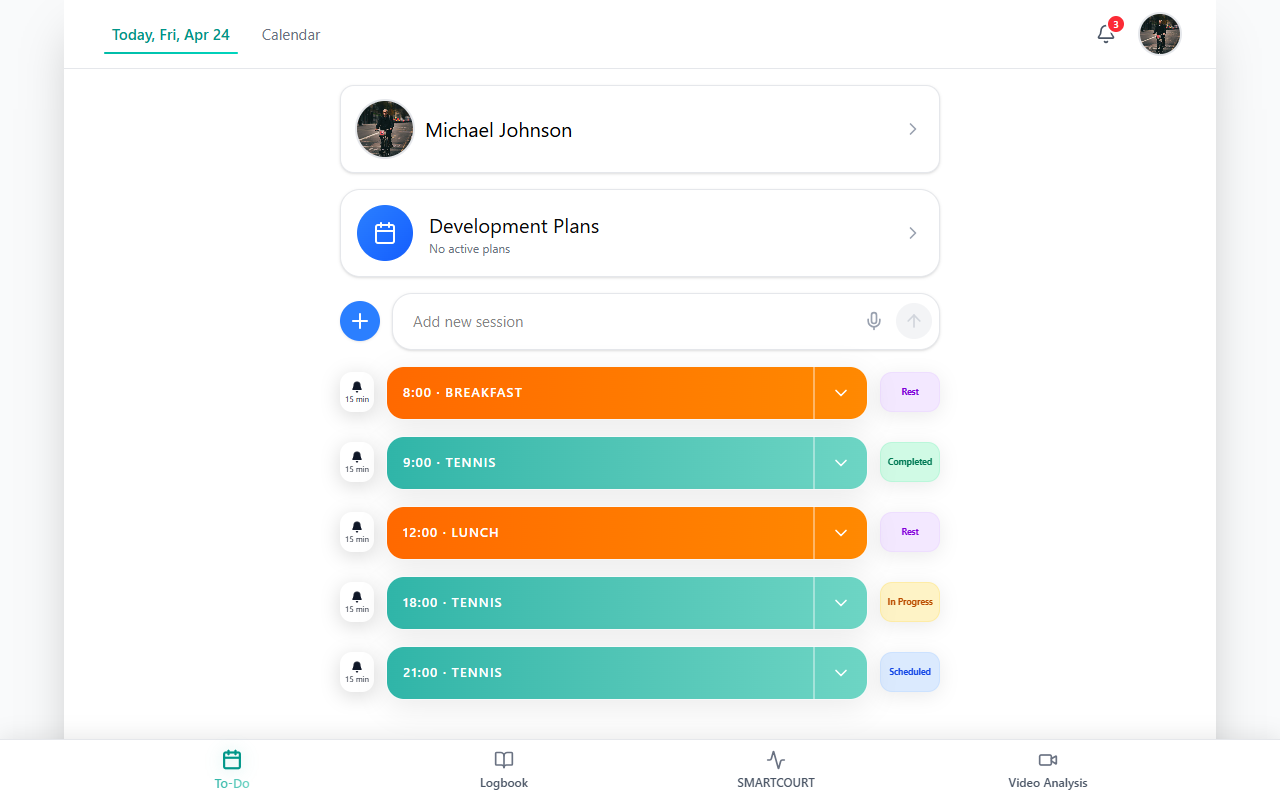
Start the scheduled tennis session using the control your build shows on that row (label may vary). If you instead begin from Smart Court (Start New Session), you reach the same training session shell—see Smart Court: Start New Session.
Training Plan — pick a drill
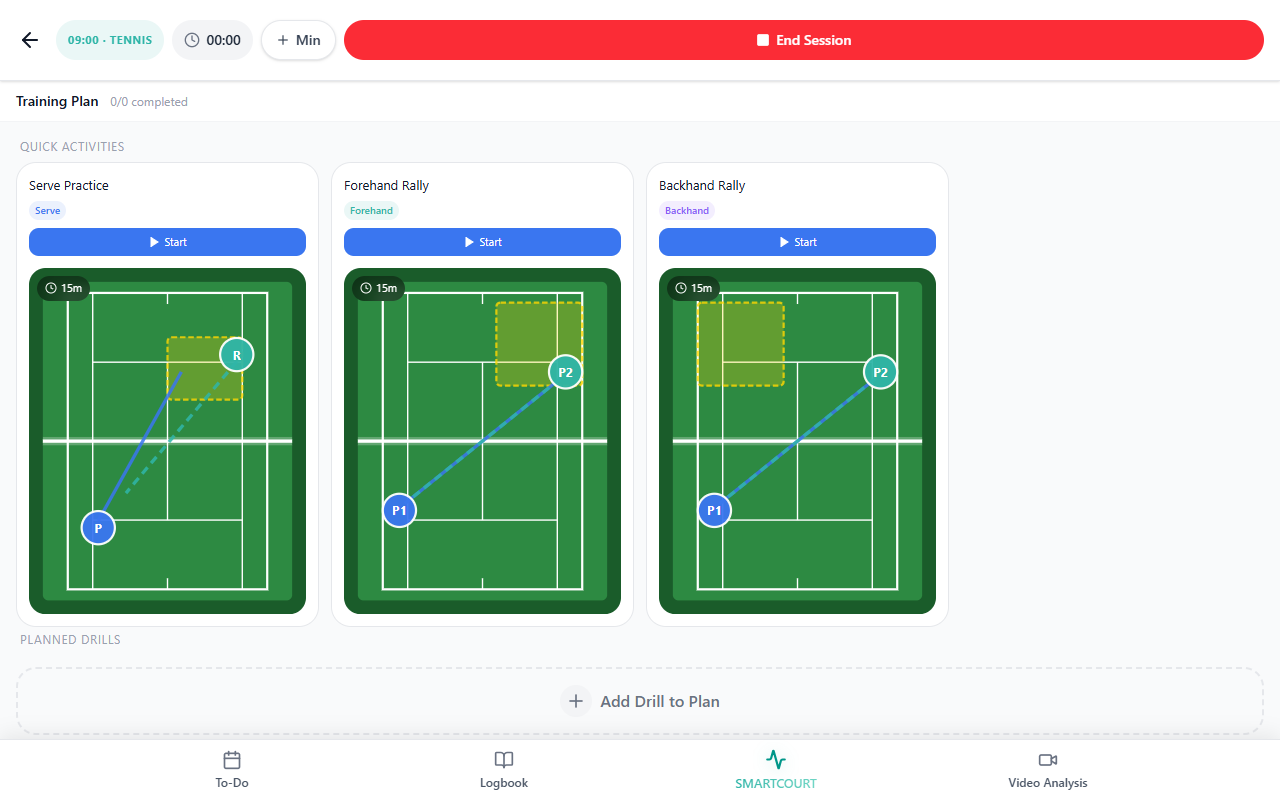
After the session is running, open Training Plan. You see Quick Activities (short drills with Start) and Planned Drills, plus Add Drill to Plan when you need more items.
While the drill runs
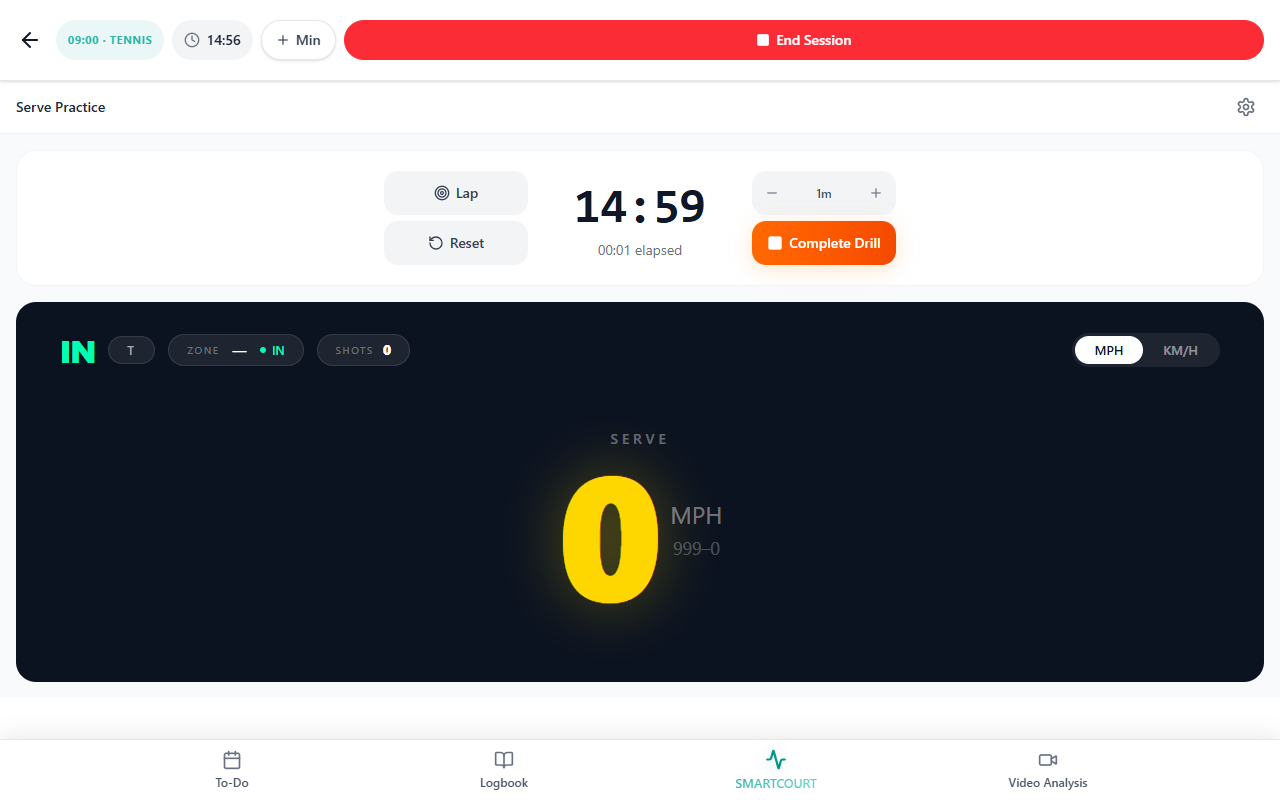
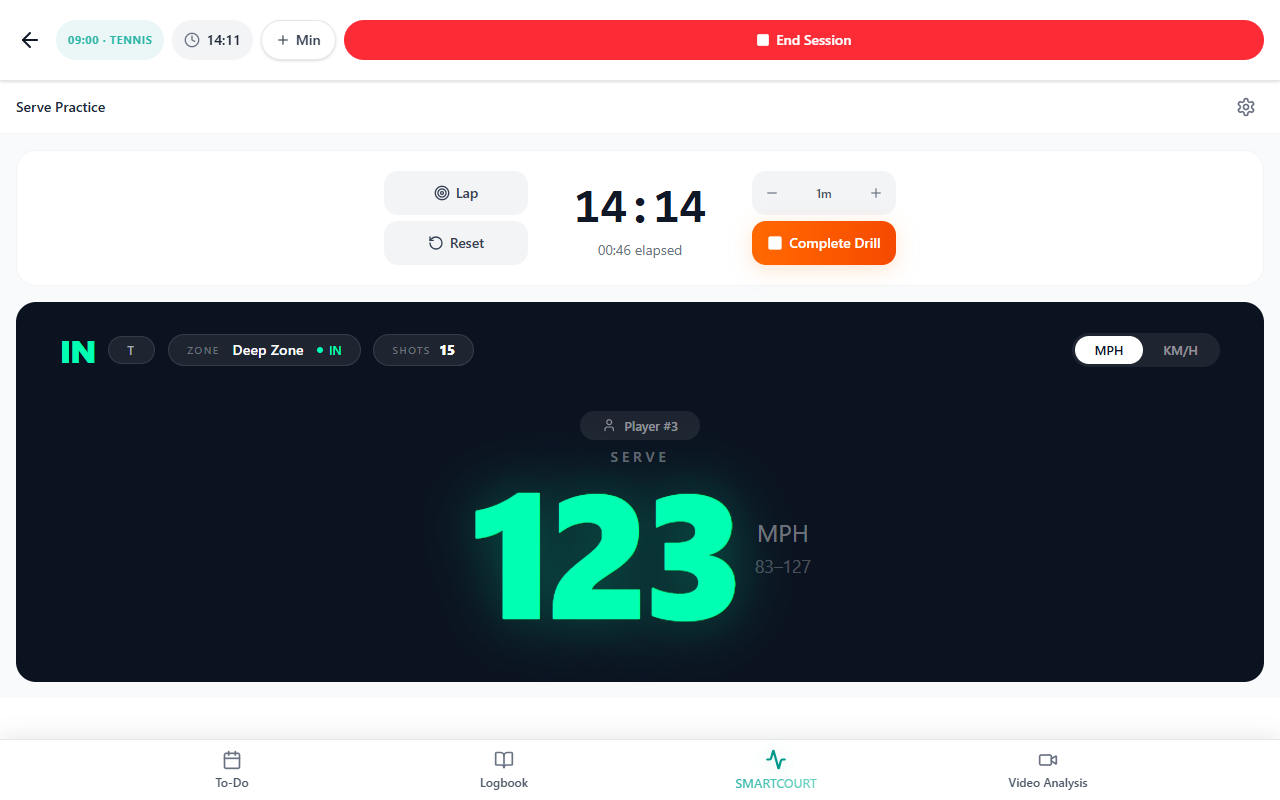
The drill workspace shows the drill name (Serve Practice in this capture), a gear icon for drill options, Lap / Reset, the timer (remaining and elapsed), −1m / + to adjust duration, speed or outcome readouts, and ■ Complete Drill to exit the drill.
What you can usually change (varies by drill)
The gear entry and the timer row are shared; the large readout depends on drill type (serve speed here, rally targets or placement on other drills).
| Area | Typical purpose | Example in this capture |
|---|---|---|
| Gear | Drill-specific parameters | Opens configuration for the active drill (exact fields depend on type). |
| Timer | Controls length of this drill segment | Countdown + −1m / + nudge. |
| Lap / Reset | Segment or repetition control | Starts a lap or resets counters when offered. |
| Complete Drill | Ends only this drill | Returns you to review and session tiles—not the same as End Session. |
| Speed / outcome row | Live feedback | Serve speed, IN/OUT, ZONE, SHOTS; rally drills may swap in different metrics. |
After you complete the drill
Tap ■ Complete Drill. You get a Drill complete summary (Session statistics, comparison percentages when shown, and shortcuts).
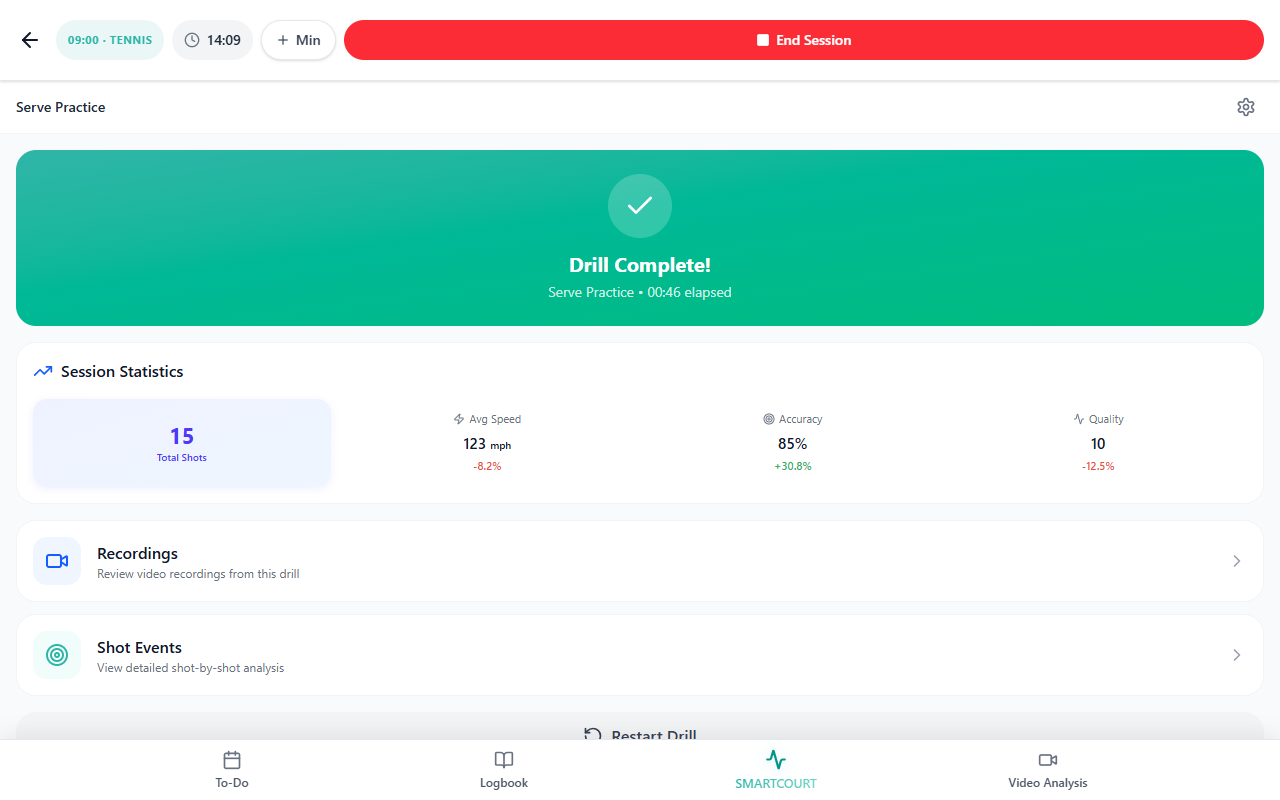
Recordings
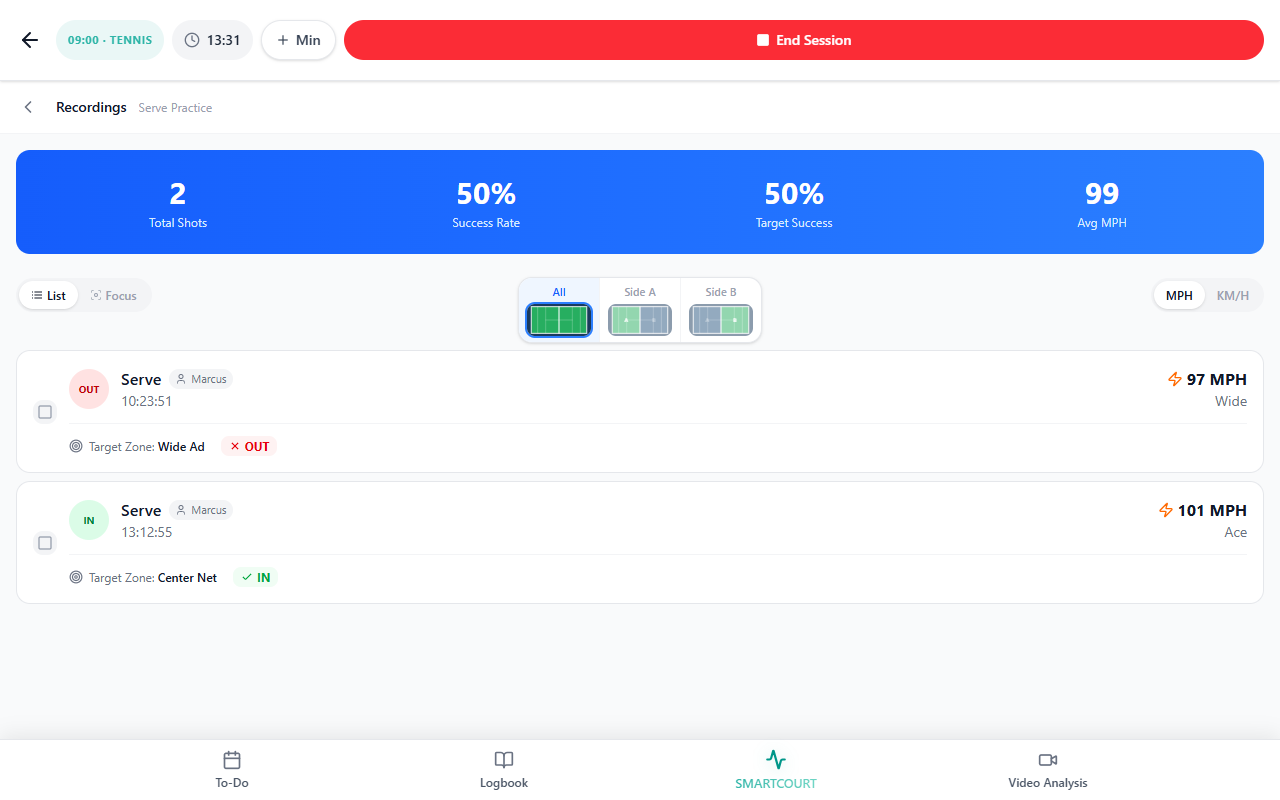
Recordings opens a per-shot list with filters (List / Focus, All / Side A / Side B), MPH / KM/H, and each shot’s outcome, speed, and target zone.
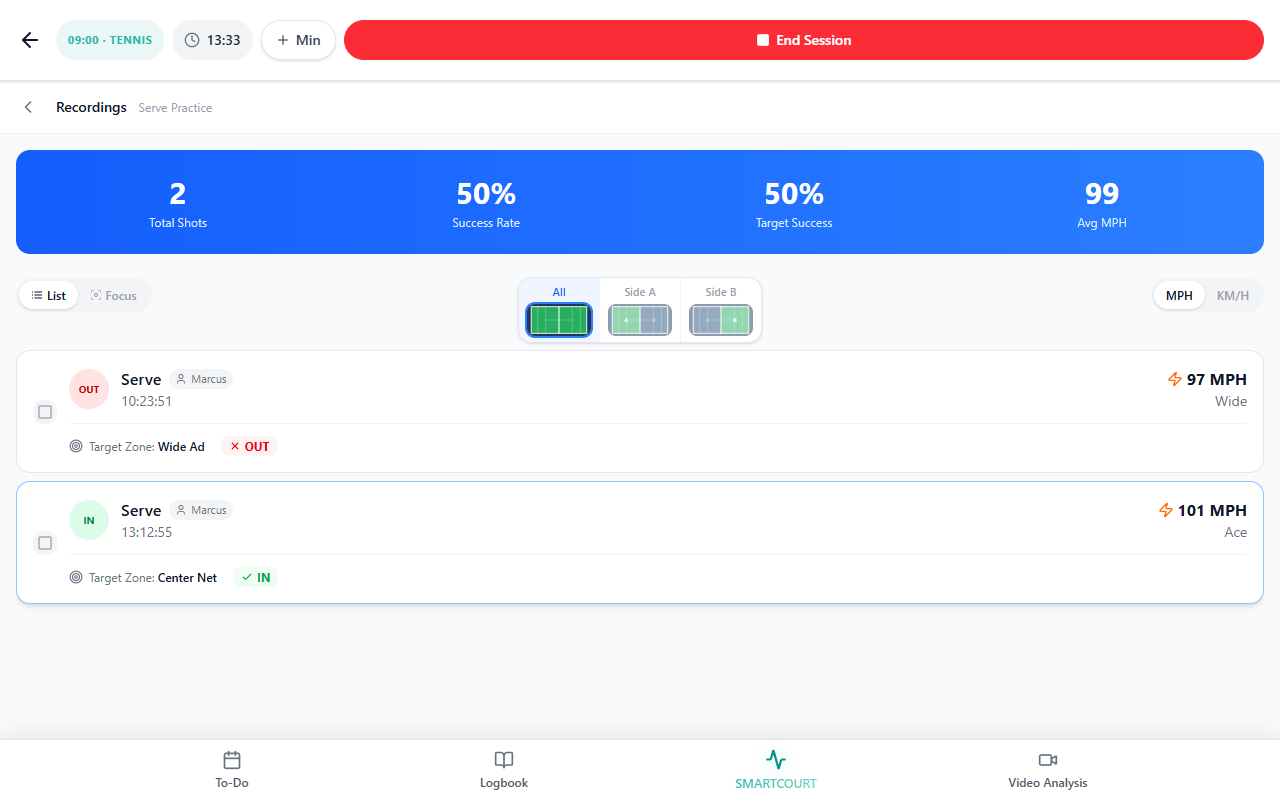
Shot Events
Shot Events focuses the same kind of shot-by-shot detail for analysis—aligned with how Shot Events is described for live sessions: AI-recognized events you can scan during or after training. For the on-court Shot Events tile during play, see Smart Court.
How this connects to the rest of CoachEye
- Plan the day on Today; add or schedule tennis blocks with Schedule a Training Session when you need Tennis + library content.
- Build multi-drill templates under Training sessions and browse the library in Drills Collection.
- End Session in the header closes the entire on-court session; Complete Drill only finishes the current drill card.
Related guides
- Today — daily timeline
- Schedule a Training Session — Tennis + Add Training Plan
- Training Hub — library and saved work
- Training sessions — session templates
- Drills Collection — choosing drills
- Smart Court — session layout, Shot Events tile, cameras
- Smart Court: Start New Session — entering a live session from the court list
- Video Analysis — when to move from session review into analysis