
Smart Court
Overview
Smart Court connects your training to a real place — the court or facility where you are working. It gives athletes and coaches one focused view of that location, today’s schedule there, and a fast way to start or continue a session.
Use this screen when you are already at a specific court, preparing to train there, or want to work with the schedule for one location instead of looking at the full day. If Today helps you manage the whole day, Smart Court helps you act quickly at the place where training actually happens.
Why this matters
Training often becomes less efficient when the plan and the place are disconnected.
When you arrive on court, you do not want to search through the whole app just to confirm where you are, what is scheduled there, or how to start the session. Smart Court solves that by bringing the venue and the day’s relevant work together in one screen.
This makes it easier to:
- start sessions faster,
- stay focused on the current location,
- reduce confusion when multiple venues or activities are involved,
- and move from planning into action with less friction.
For athletes, that means a quicker and clearer start to practice. For coaches, it means a more reliable on-site workflow and an easier way to stay aligned with what is happening at a specific court.
What you can do here
In Smart Court, you can:
- open a location-focused view of today’s work
- confirm the pinned venue and today’s date
- review the schedule for that location under Scheduled Today
- start a new session for the current court
- open a scheduled card and continue with that session
- switch to another saved venue when needed
This makes Smart Court the most useful place to begin when your next action depends on where you are training.
How to use Smart Court
1. Open Smart Court
- Tap Smart Court in the app footer.
- When the screen opens, confirm that you see the Smart Court heading and today’s date.
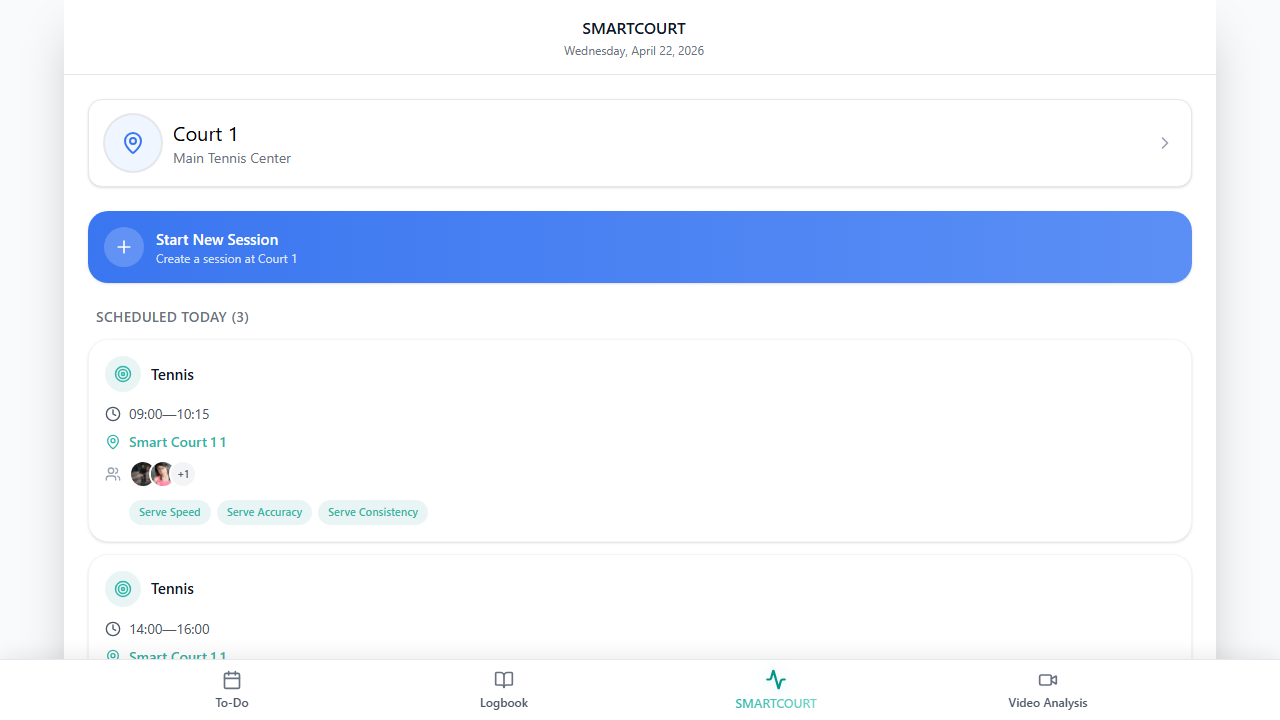
2. Check the pinned venue
The home view shows one pinned venue — your primary saved court in the app.
Read the location row to confirm:
- the court name,
- and the facility line below it.
This helps you make sure you are working in the correct place before starting the session.
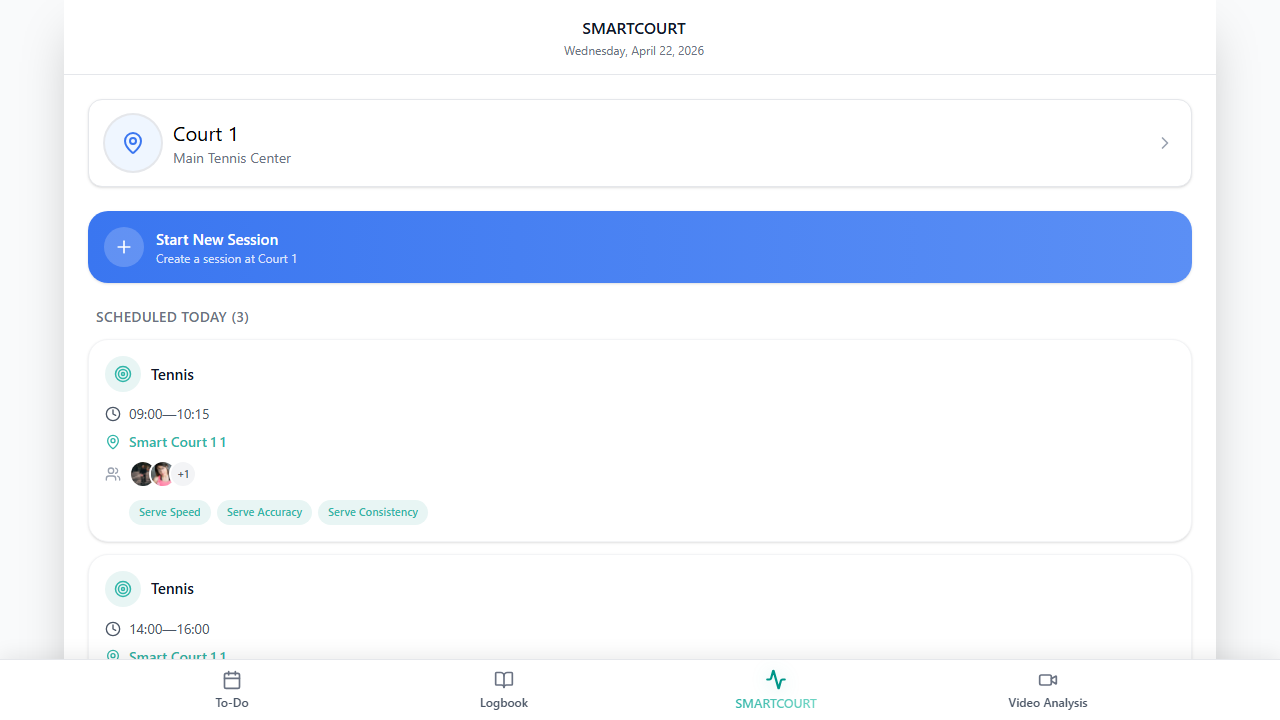
3. Review what is scheduled there today
Under Scheduled Today, you can see the sessions tied to that location.
Session cards show:
- the session type, such as tennis, fitness, or match play,
- and the scheduled time.
This gives you a quick read of what is happening at that venue today without switching to a wider daily view.
4. Start a new session
Tap Start New Session to open the training session screen for that court.
Use this when you are ready to begin training from the current location and do not need to go through the full day view first. For a deeper walkthrough of this action, see Smart Court: Start New Session.
5. Open a scheduled card
If there is already something planned under Scheduled Today, tap the card to open the same training session experience with that appointment’s details.
This is useful when the session has already been scheduled and you want to continue directly from the venue screen.
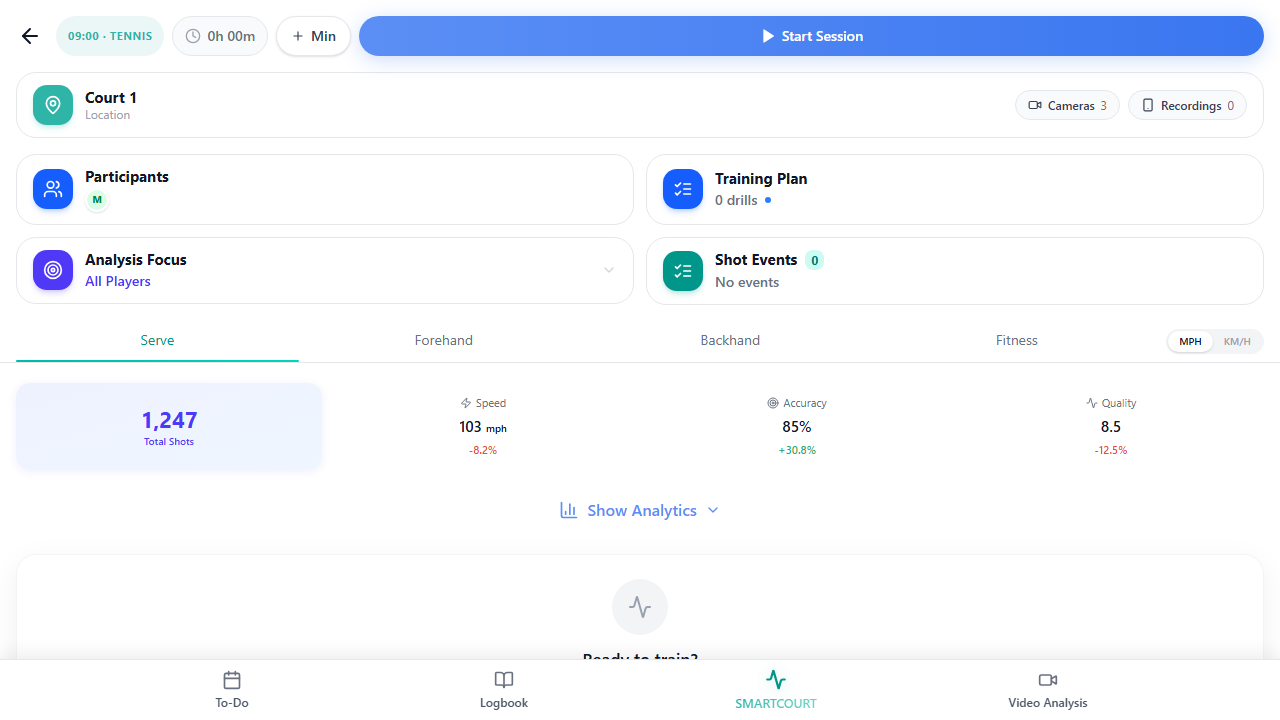
For a scheduled session, Participants reflects who is active in the live session: you can see connected participants — coaches, athletes, or others who have joined — so everyone knows who is present before and during training.
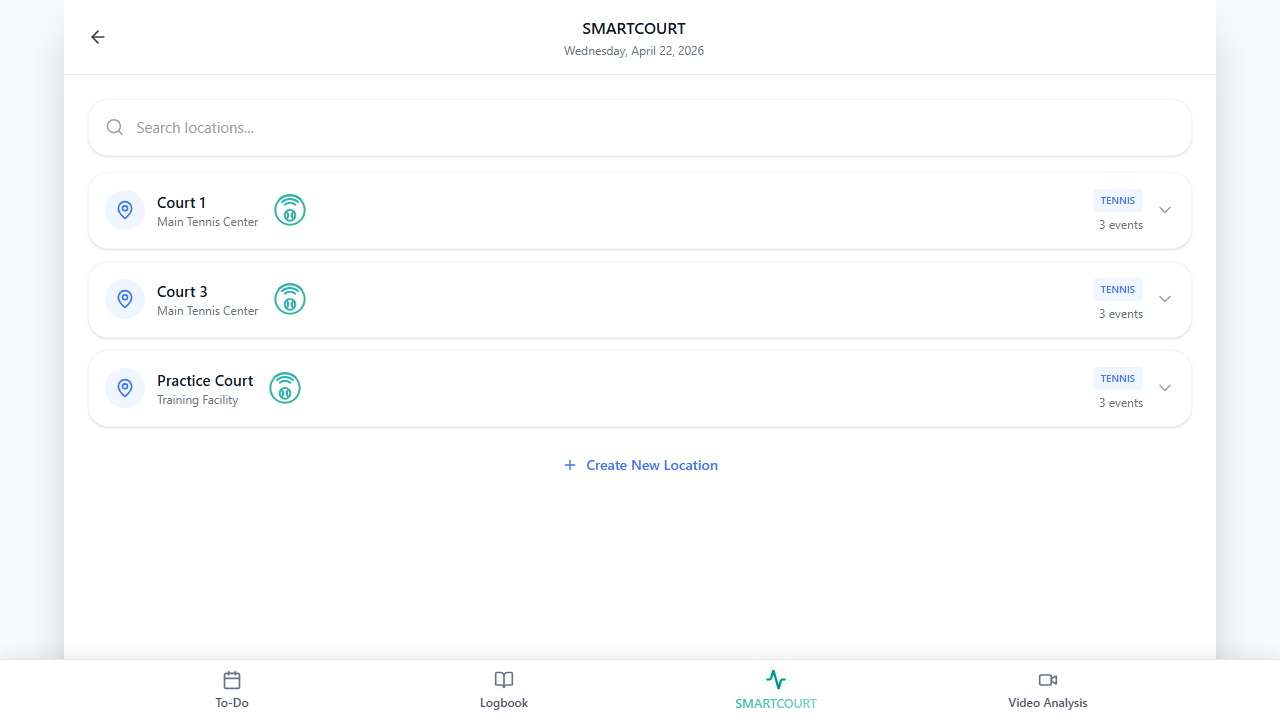
6. Switch to another saved venue
If your setup includes more than one saved location, use Smart Court to switch to another venue when needed.
This is especially helpful for coaches, athletes, or families who move between different courts or facilities and want the screen to stay tied to the right place.
Training session screen
After you open a scheduled card or start a new session, you land on the training session screen. It brings together live status, the plan for this session, people, and cameras. The sections below match the main panels you will see.
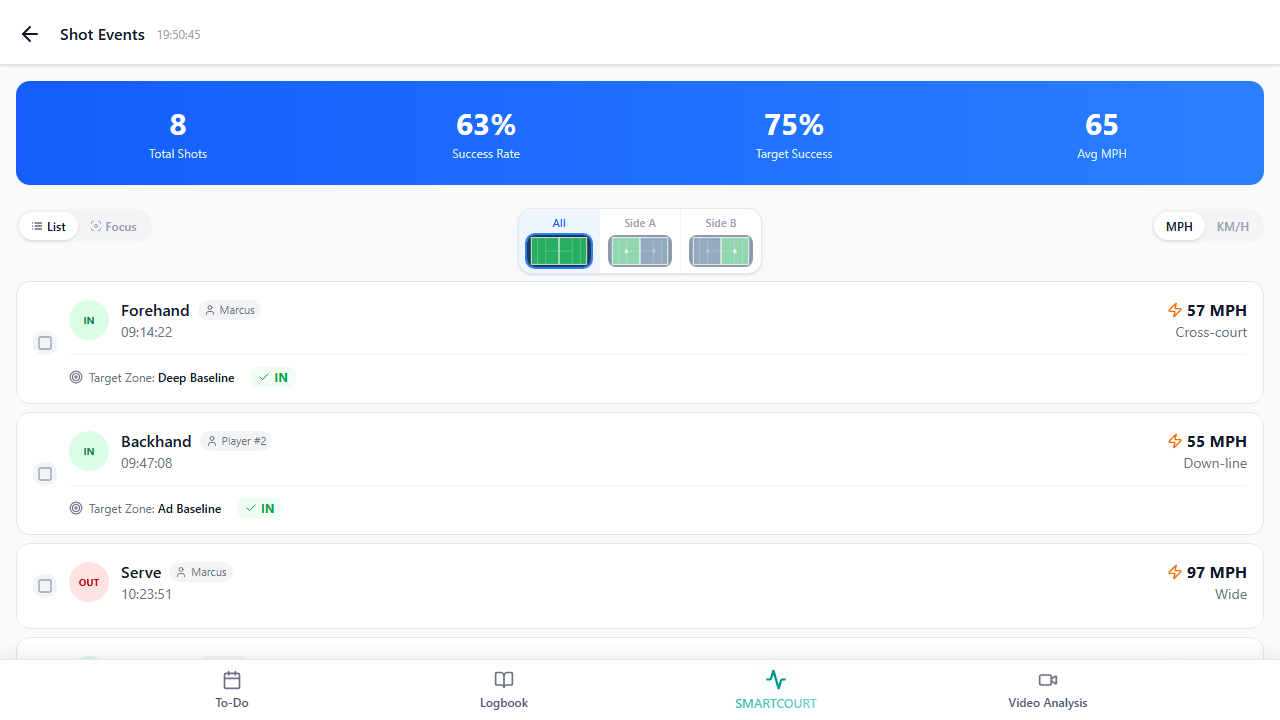
Shot Events
Shot Events shows AI-recognized events — strokes and other moments the system detects from court video so you can review real activity, not only the schedule.
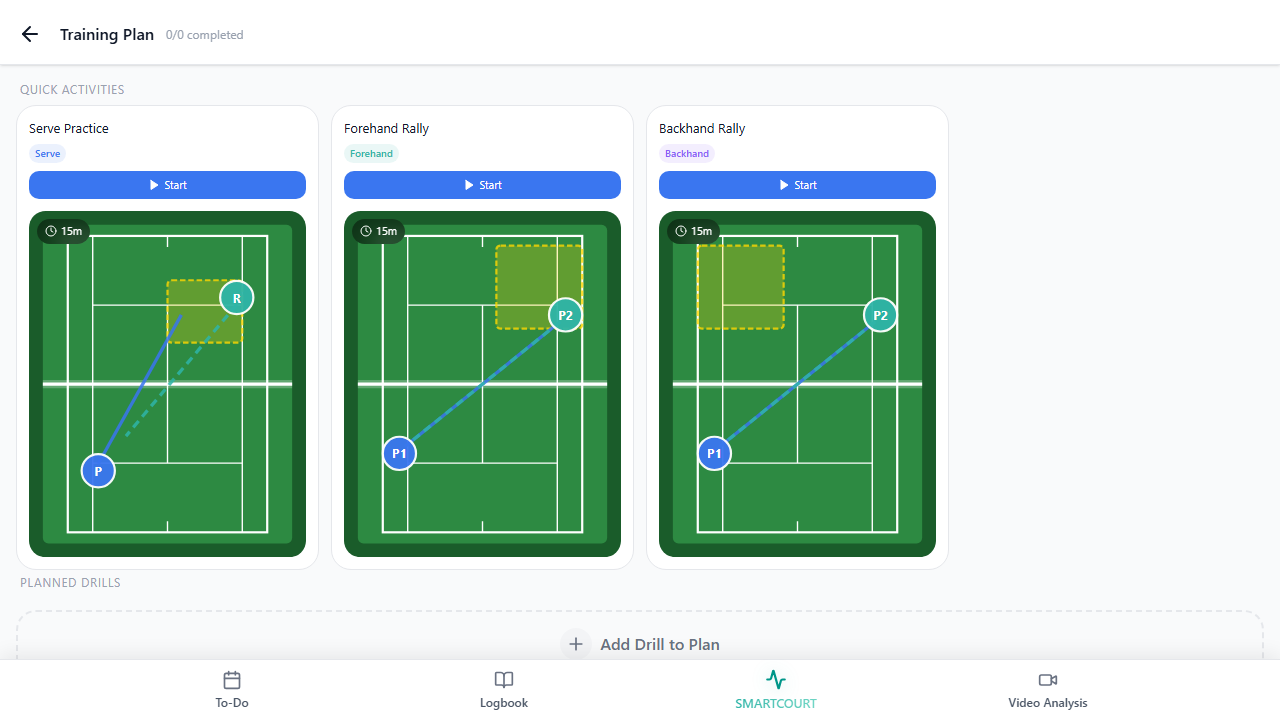
Training Plan
The Training Plan is the list of planned exercises (drills) for this session — the ordered practice items prepared ahead of time (for example from Training Hub or your coach’s plan).
Participants
Participants lists everyone attached to this session and who is connected in the live session.
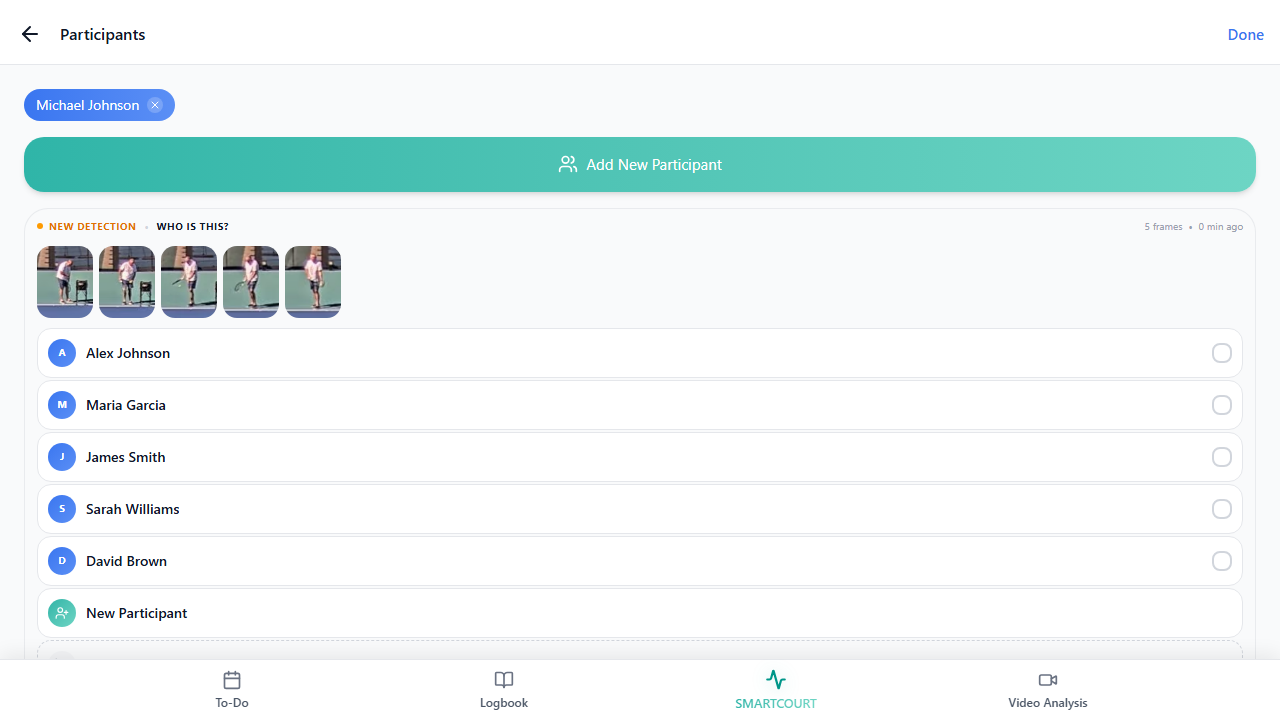
To add a new participant, open Participants, tap Add participant (or the + action next to the section title, depending on your app version), select the person from your directory or contacts, and confirm. They appear in the roster and can connect when they join the live session.
Cameras
Cameras lists video sources available for this session — for example fixed court cameras or linked devices — and whether each feed is active.
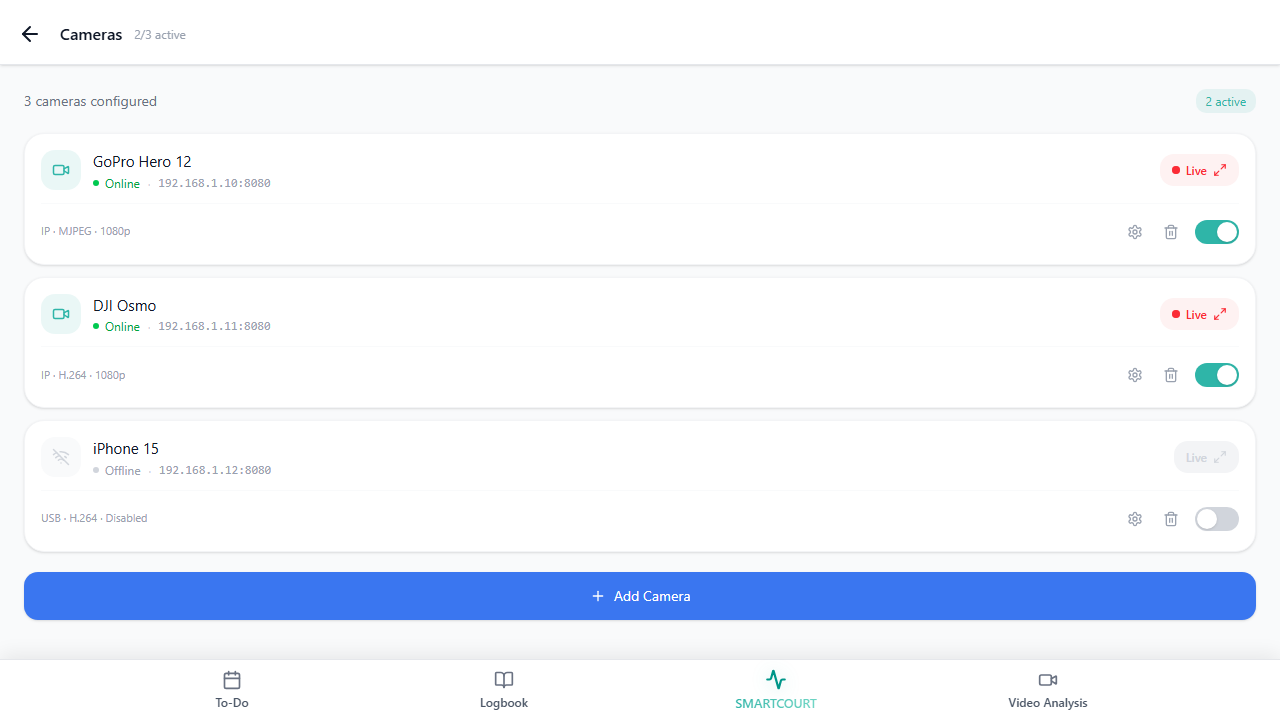
Tap Add Camera to attach another angle or device. Follow the steps your facility or device supports (pairing, selecting a stream, or approving access). After a camera is added, it can contribute to Shot Events and session video.
What happens next
After you tap Start New Session or open a scheduled card, you continue on the training session screen.
From there, the flow moves from location-focused preparation into the actual training session. After training, video-based workflows continue in Video Analysis, while history and review belong in Logbook.
This makes Smart Court a practical bridge between:
- where the athlete is training,
- what is planned there today,
- and the next action that starts the session.
Tips
- Use Smart Court when you care about one specific venue, not the full day.
- Check the location row before starting so the session is tied to the correct court.
- Use Scheduled Today when the session is already planned and you want to open it directly.
- Use Start New Session when you are on-site and want the fastest path into a new training session.
- If you want the full day across all activities, switch to Today instead.
Related guides
- Smart Court: Start New Session — start here when you use Start New Session on this screen.
- Today — see your full day; Smart Court focuses on one place.
- Logbook — review past sessions and analytics.
- Video Analysis — work with session video after you train.
- Training Hub — drills and training content.
- Add a session from Today — another path to starting a session.
- Interface overview — how the main areas of the app fit together.
- Core concepts — logbook and session basics.
- Core concepts — terms such as Smart Court and Live Data.