
Training sessions
Overview
Training sessions is where you turn individual drills and routines into a complete session template.
Use this page when you want to build a structured practice block instead of selecting exercises one by one each time. A session template helps you group drills into one repeatable training unit with a clear name, a defined focus, and a realistic duration. This makes training easier to organize, easier to repeat, and easier to align with the athlete’s goals.
For coaches, this is a practical way to build consistent session structures without rebuilding familiar practice blocks from scratch. For athletes who train more independently, session templates bring more structure and more coaching logic into planning, so training feels more purposeful instead of improvised.
Open it from Training Hub — the Training sessions tab.
Why this matters
A strong training session is more than a list of drills.
It should have a clear purpose, a logical structure, and a workload that fits the athlete and the day. Training sessions helps users bring those elements together in one place. Instead of assembling a practice from memory each time, you can create a repeatable template and reuse it when the same training need comes back.
This is especially useful when:
- the same training focus returns regularly,
- a coach wants to apply a proven session structure across athletes,
- or an athlete wants to follow a more consistent plan in self-training.
A well-built session template also helps users check whether the training block is realistic. By watching the number of drills and estimated duration while editing, you can avoid building a session that is too fragmented, too long, or missing a clear focus.
What you can do here
In Training sessions, you can:
- open the Training sessions tab inside Training Hub;
- create a new session template;
- search existing session templates (see Tips if search behaves differently in your app version);
- review saved sessions in the list;
- read each session row by name, focus, and drill count;
- open Info to preview the session;
- use + to add a session template to the hub’s multi-select basket;
- build a session with a clear name, main focus, and optional tags;
- watch Session Summary while editing to track Total Drills and Est. Duration;
- save the session when it has a name and at least one drill.
Open Training sessions
Go to Training Hub, then choose Training sessions.
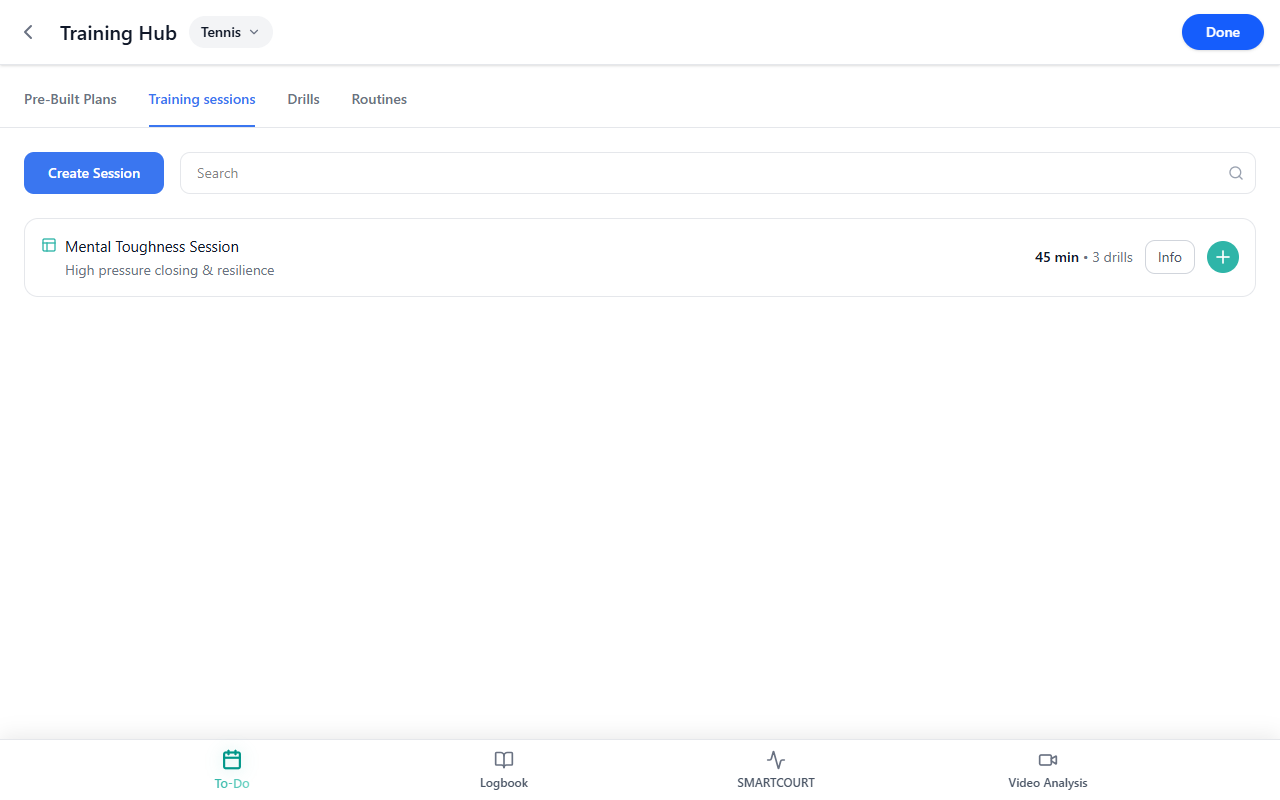
At the top of the page, you should see:
- Create Session
- Search
If nothing has been saved yet, start with Create Session.
This page becomes most useful when you already know the kind of session you want to build — for example, a serve-focused block, a footwork session, or a session built around a specific match-preparation pattern.
Read the session list
Each row in the list represents one saved session template.
A row includes:
- a session icon beside the title;
- the Session Name;
- the Main Focus line as the subtitle;
- a compact summary such as 45 min • 3 drills;
- Info for preview;
- + for adding the template into the hub’s multi-select basket.
This lets you quickly decide whether a saved session is relevant before opening it in more detail.
Use the list when you want to:
- find a previously built session,
- compare session options,
- or quickly bring an existing template into your working flow.
Preview a session before using it
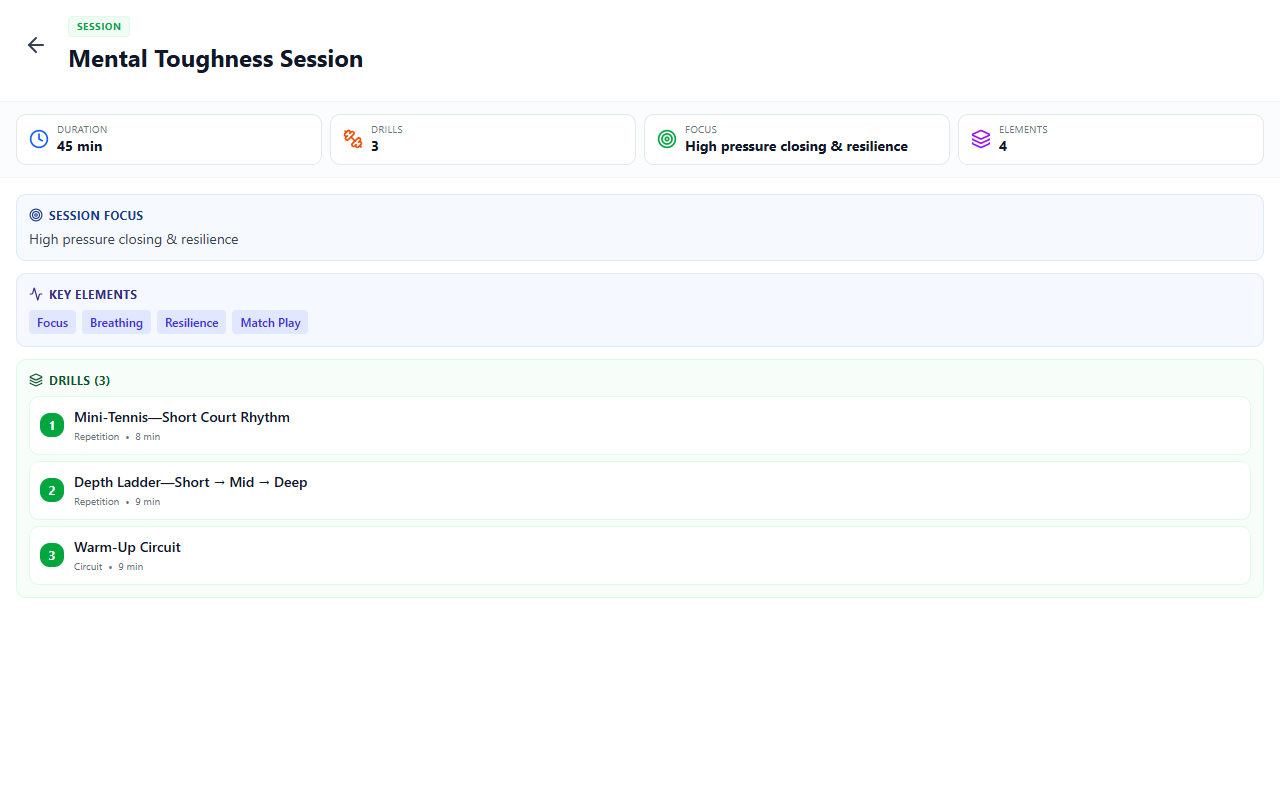
Tap Info on a row to preview the template.
The preview shows:
- Session Focus
- Key Elements
- numbered Drills
This is especially useful when the title alone is not enough and you want to understand what the session actually includes before selecting it.
Previewing helps users choose more intentionally and makes it easier to match the session to the athlete’s current training goal.
Add a session to your working set
Tap + on a row to include that session template in the hub’s multi-select basket.
This basket can include sessions alongside drills and routines, depending on the flow you are using. If a bottom confirmation bar appears, finish with Done.
This makes the page more than a list of saved templates. It becomes a practical way to move from browsing into actual planning, especially when you are building a larger training block from several pieces of content.
Create a new session
Use Create Session when you want to build a new reusable session template.
This is the right choice when:
- you already know the training focus,
- the existing sessions do not match what you need,
- or you want to preserve a useful structure for future reuse.
A good session usually begins with a clear training intention. Before you start, decide:
- what the athlete is meant to work on,
- which drills belong together,
- and how long the full block should realistically last.
Drills themselves come from the library — browse Drills Collection or add your own via Create New Drill before or while you compose the session.
Build the session step by step
1. Name and focus
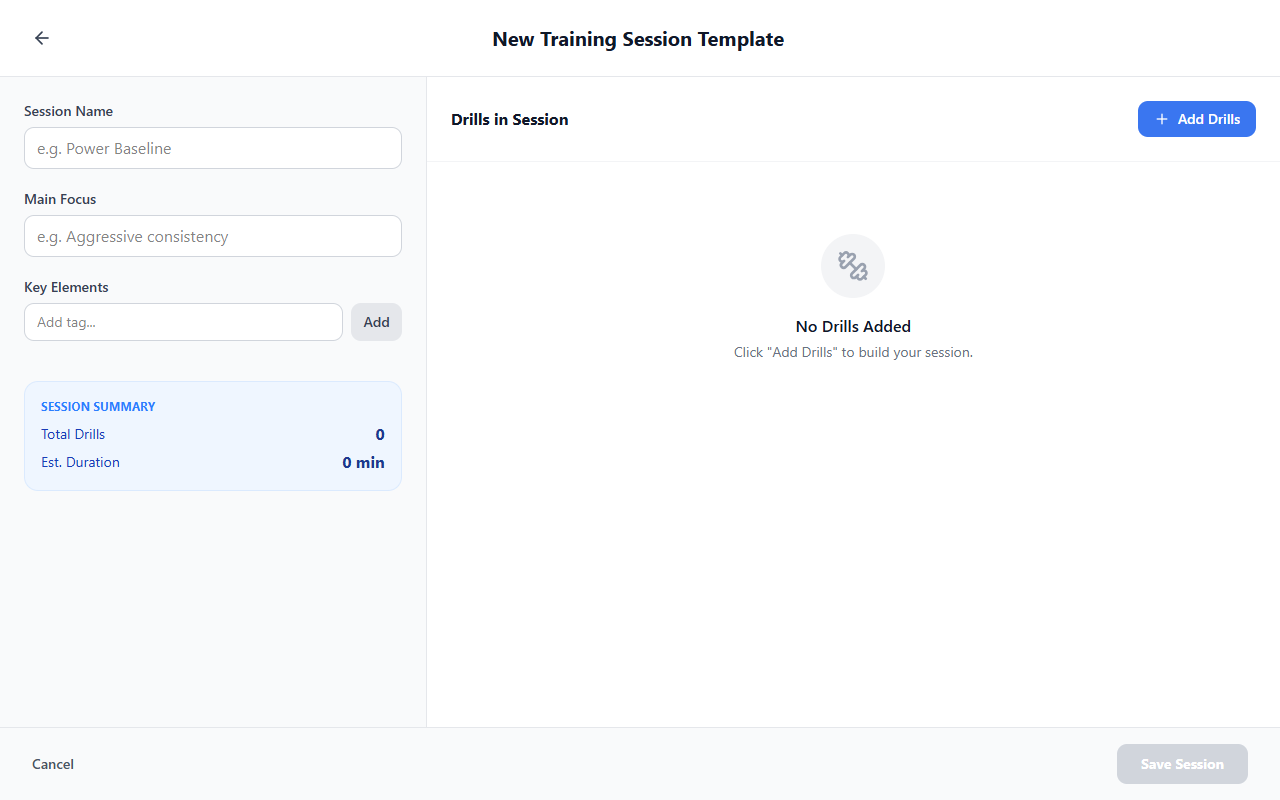
Start with the fields that define the session clearly.
- Session Name — choose a name people will recognize.
- Main Focus — write one sentence that explains what this block is about for the athlete.
This is important because the session should be easy to identify later in the library and easy for the athlete or coach to understand at a glance.
2. Add tags if needed
Tags are optional, but they can make sessions easier to organize.
To add a tag:
- Type into Add tag...
- Tap the nearby Add button.
- Repeat as needed.
- Remove mistakes with ×.
Use tags when you want to group sessions by theme, phase, athlete need, or any naming system that makes your library easier to manage.
3. Add drills into the session
Build the session from drills that match the training goal.
As you add drills, keep the session purposeful. A good training session should not feel like a random collection of exercises. It should move through work in a way that makes sense for the athlete — for example:
- preparation,
- main technical or tactical focus,
- supporting or applying work.
Use Add Drills, then Search library... to pick exercises (including combined Circuit blocks when available). Close Picker returns you to the ordered Drills in Session list.
4. Watch Session Summary while editing
As you build the session, watch Session Summary.
This area shows:
- Total Drills
- Est. Duration
This is one of the most useful controls on the page. It helps you keep the session realistic and balanced while you edit. If the session grows too long or too crowded, the summary helps you catch that before saving.
5. Save when ready
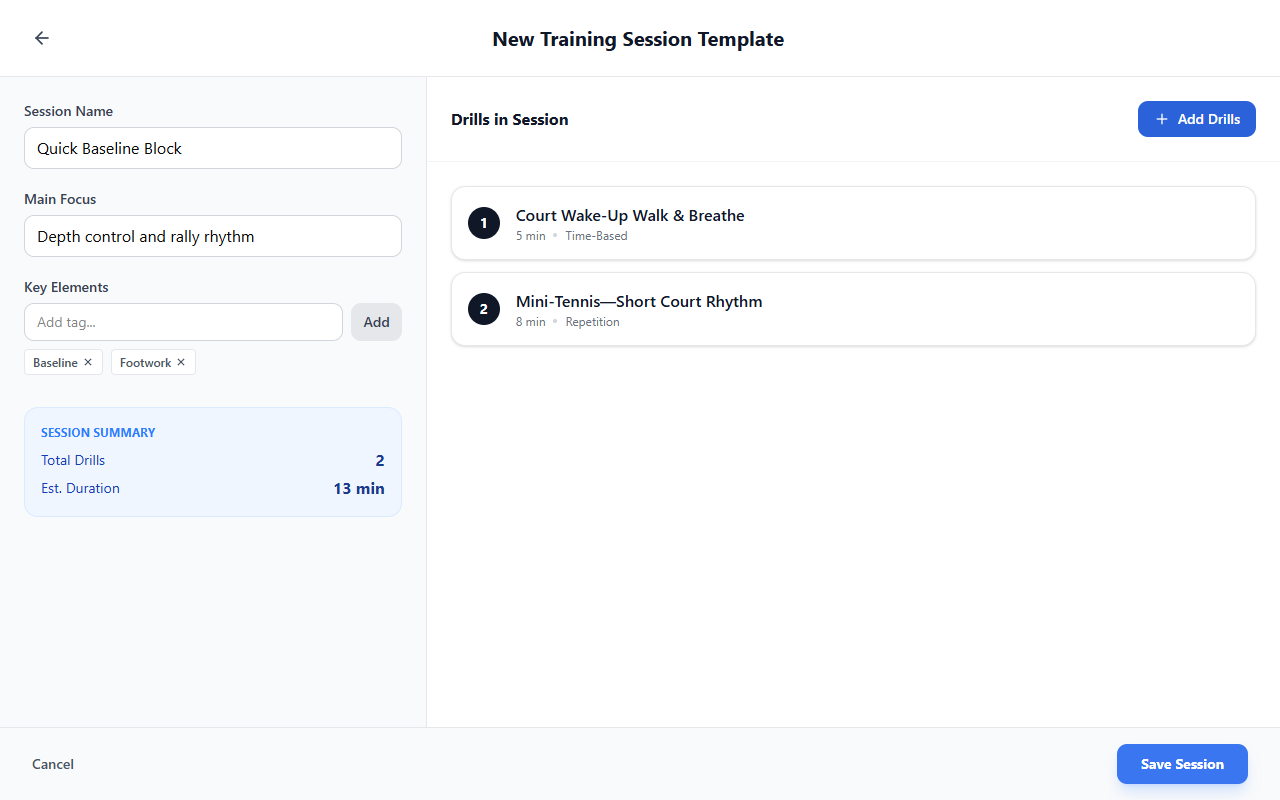
Use Save Session when the session has:
- a name,
- and at least one drill.
Use Cancel if you want to leave without saving.
This makes the save logic clear: a session template needs a recognizable identity and real training content before it becomes reusable.
How to build a better session
When creating a session, start from the training goal rather than from the first drill you recognize.
A stronger session usually:
- has one clear main focus,
- uses drills that support the same training objective,
- keeps the total duration realistic,
- and gives the athlete a structure that feels coherent from start to finish.
This is where Training sessions becomes especially valuable. It helps turn the content library into something more useful: not just drills on their own, but complete training blocks that can be repeated and refined over time.
What happens next
Once saved, the session becomes part of your Training sessions list and can be found again later — by scrolling, by Search when it is available, or by recognizing name and focus in each row.
From there, it can support the rest of the CoachEye workflow:
- selected into the hub’s working basket,
- used alongside drills and routines,
- and applied in broader planning or training flows when supported — for example Today and Development Plans.
This makes session templates a practical bridge between the training library and real session planning. For live on-court execution from Smart Court (distinct from these saved templates), see Smart Court: Start New Session.
Tips
- Give the session a name people will recognize later.
- Write Main Focus as one clear sentence, not a long description.
- Use tags only when they help you organize the library more clearly.
- Watch Session Summary while editing so the session stays realistic in both size and duration.
- Build the session around one training objective instead of combining unrelated drills into one block.
- Use Info on existing rows when you want to compare session content before choosing one.
- If Search does not narrow session rows in your build, scroll the list or rely on name and focus lines to find templates.
Related guides
- Training Hub — browse the wider training content library.
- Drills Collection — choose drills that match the skill you want to train.
- Create New Drill — create a custom drill when the library is not specific enough.
- Today — use training content in the daily workflow.
- Development Plans — place training blocks into the weekly schedule.
- Smart Court: Start New Session — move from planning into on-court execution.