
Video Analysis
Overview
Video Analysis is where training and match footage becomes something you can actively review and use. It helps athletes, coaches, and parents work with video in a more structured way: slow it down, mark important moments, leave notes, and ask Assist questions in plain language.
Use this page when you want to turn raw video into useful feedback. You can review your own matches and training, analyze an athlete you coach, or look more closely at a child’s games and practice sessions. Video can also be useful when preparing for competition, including reviewing an opponent’s patterns and tendencies more deliberately.
Tap Video Analysis from the bottom navigation when you want review to stay close to planning, training history, and the rest of the CoachEye workflow—alongside Today, Logbook, and Smart Court.
Why this matters
Specific feedback improves training.
Watching video without structure can be useful, but it often leaves too much to memory and opinion. Video Analysis helps users work with footage more deliberately by keeping the video, marked moments, notes, and Assist thread in one place.
This makes the page especially valuable for different roles:
- Athletes can review their own matches and training, understand patterns more clearly, and use that insight to improve the next block of work.
- Coaches can analyze the athletes they train, highlight key moments, and guide development using real footage instead of relying only on post-session recall.
- Parents can review a child’s games and training sessions more clearly and better understand what is happening in the athlete’s development.
- Competitive players and coaches can also use video review to study likely opponents, notice tactical patterns, and prepare more intentionally for upcoming matches.
Used well, Video Analysis helps turn footage into practical feedback and more informed decision-making.
What you can do here
In Video Analysis, you can:
- open the video review workspace from the bottom navigation
- add a new video project
- upload footage from a device
- add footage by link when link import is available in your workspace
- record new video directly
- add footage from session recordings (browse recordings linked to past sessions)
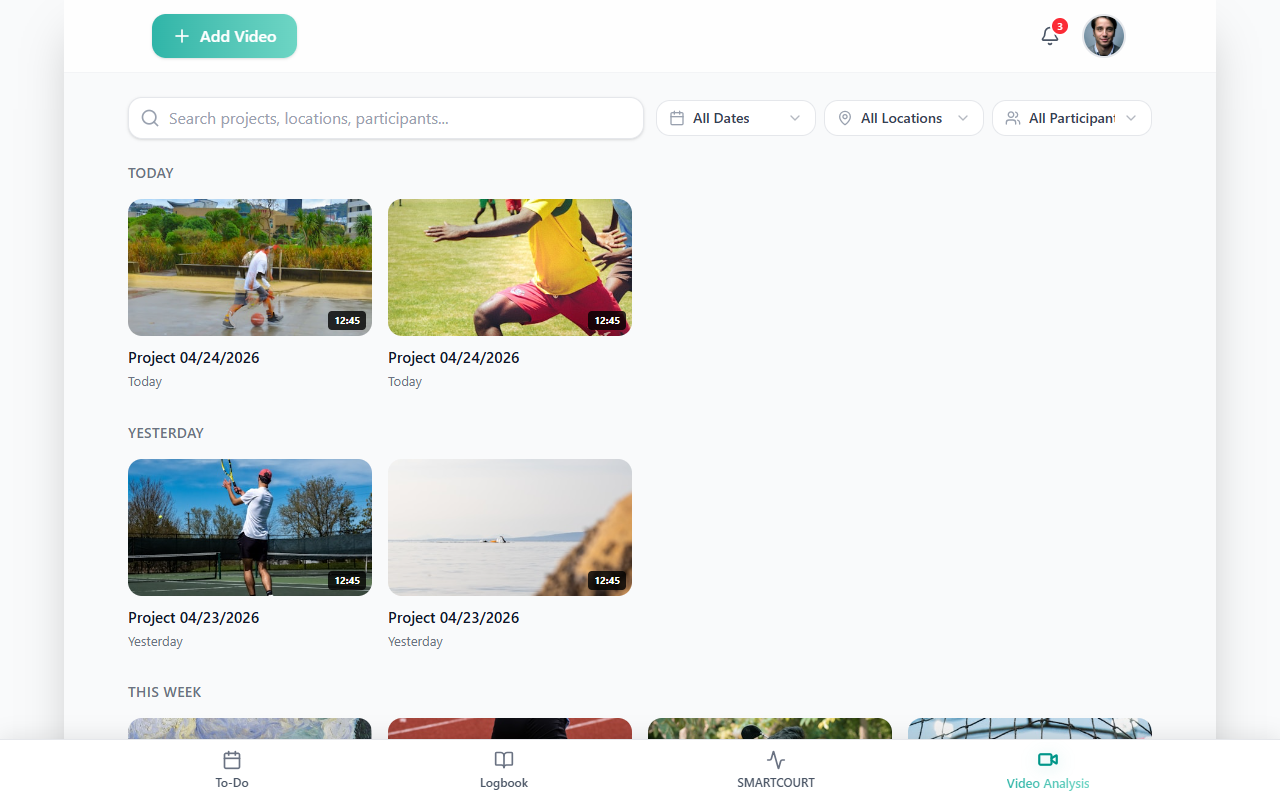
- browse project cards grouped by time
- use search and filters to narrow the project list
- open a project and work with the footage
- slow down video, mark key moments, and leave notes
- ask Assist questions in plain language
This makes Video Analysis useful both for quick review and for deeper technical or tactical analysis.
Who can use Video Analysis
Video Analysis supports several practical review scenarios:
Review your own training and matches
Athletes can upload or record their own footage, then use it to understand technique, decision-making, and match patterns more clearly.
Review athletes you coach
Coaches can work with player footage to identify strengths, weaknesses, and repeated patterns, then use that analysis to guide future practice more precisely.
Review a child’s development
Parents can use video review to follow a child’s matches and practice sessions more closely, making the training process easier to understand from the outside.
Review opponents and match patterns
When users have access to relevant footage, Video Analysis can also support opponent review. This is useful for spotting recurring habits, tactical tendencies, and patterns that may matter in match preparation.
Add a video
To begin, tap Add Video.
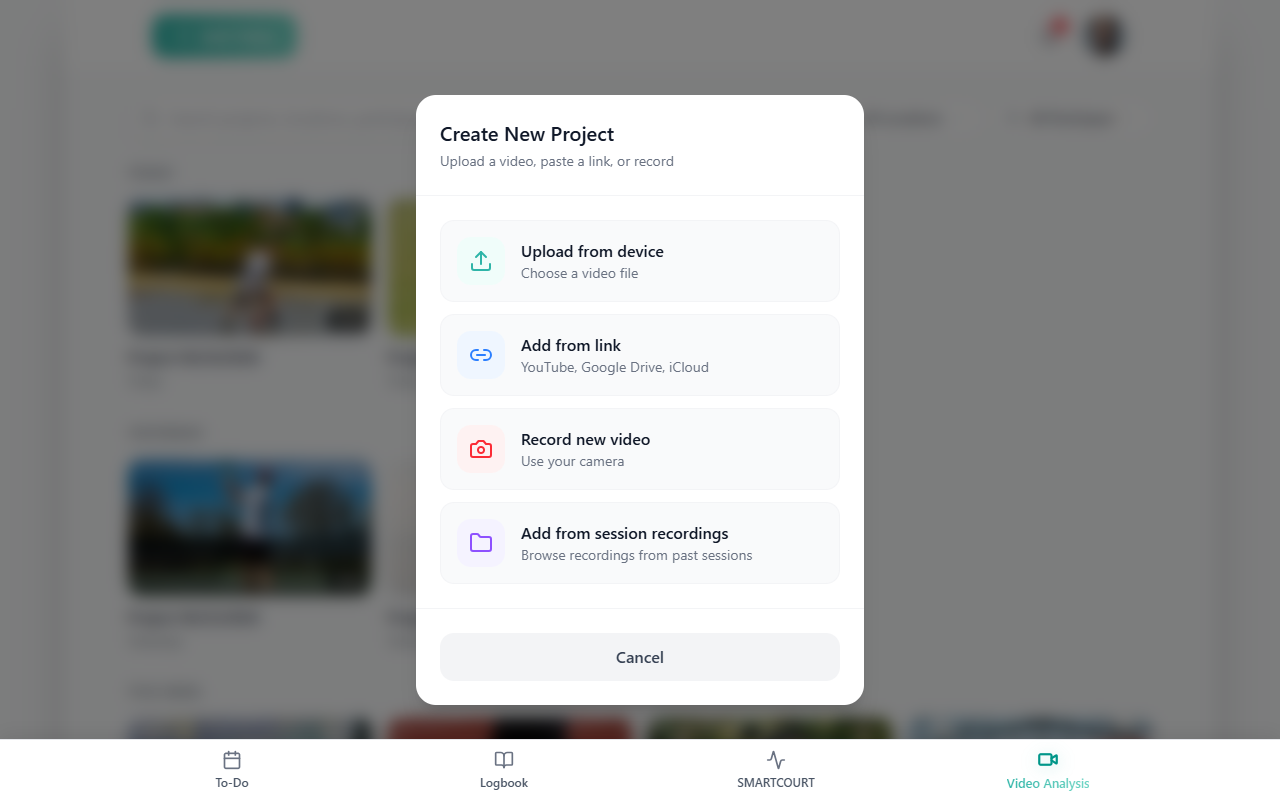
In Create New Project, choose one of the available options:
- Upload from device
- Add from link when link import is available in your workspace
- Record new video
- Add from session recordings (browse recordings from past sessions)
Tap Cancel if you want to leave without saving. After import, the new project appears in the list with the other projects.
Add from session recordings
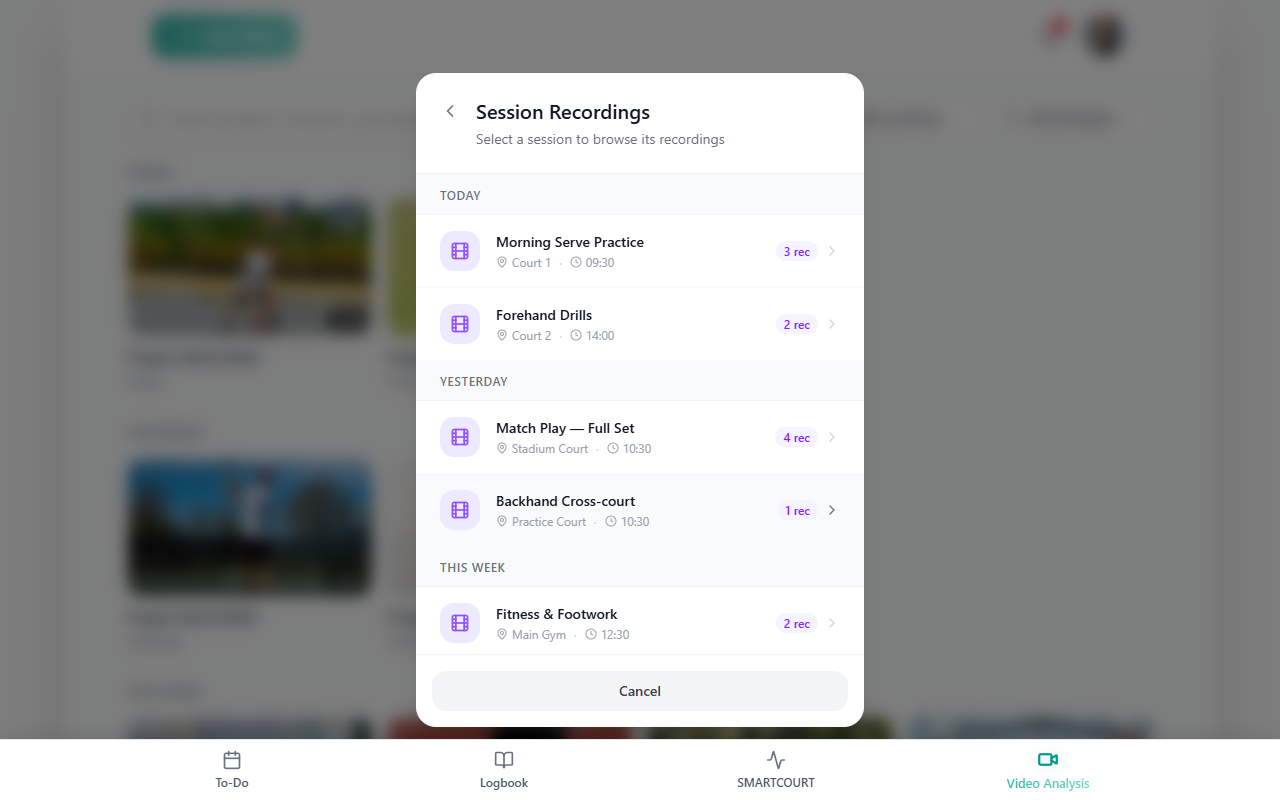
When you choose Add from session recordings, you can pick a past session and browse recordings that belong to it. Sessions are grouped by time (for example today, yesterday, this week); each row shows where and when the session happened and how many recordings are available. Tap a row to drill in, or Cancel to go back without importing.
This flexibility matters because different workflows start with different types of footage:
- athletes may upload phone video from practice,
- coaches may add recorded player footage,
- parents may import match clips,
- users preparing for a match may add linked or recorded footage for review,
- and anyone with logged sessions may pull recordings that already belong to Logbook activity into analysis without hunting through separate files.
Browse and open projects
When you land on the Video Analysis home screen, your existing projects appear as cards grouped by time.
At the top of the page, you can add media, check notifications, and open your profile. Below that, search and filters help narrow the list. Tap any project card to open it.
This makes it easier to work with growing video history over time. Instead of searching through files outside the app, you can return to past analysis from one organized project list.
Work with video inside a project
Once a project is open, Video Analysis becomes a working review space.
Here you can:
- slow the footage down,
- mark important moments on the timeline,
- leave notes,
- and keep the discussion around the footage in one place.
This is what makes the page especially useful for real coaching and review. The footage is no longer just something you watch once — it becomes a record you can return to, annotate, and use for follow-up decisions.
For coaches, this supports clearer player review. For athletes, it helps turn visual feedback into something actionable. For parents, it creates a more understandable view of the child’s games and training.
Use Assist and quick prompts
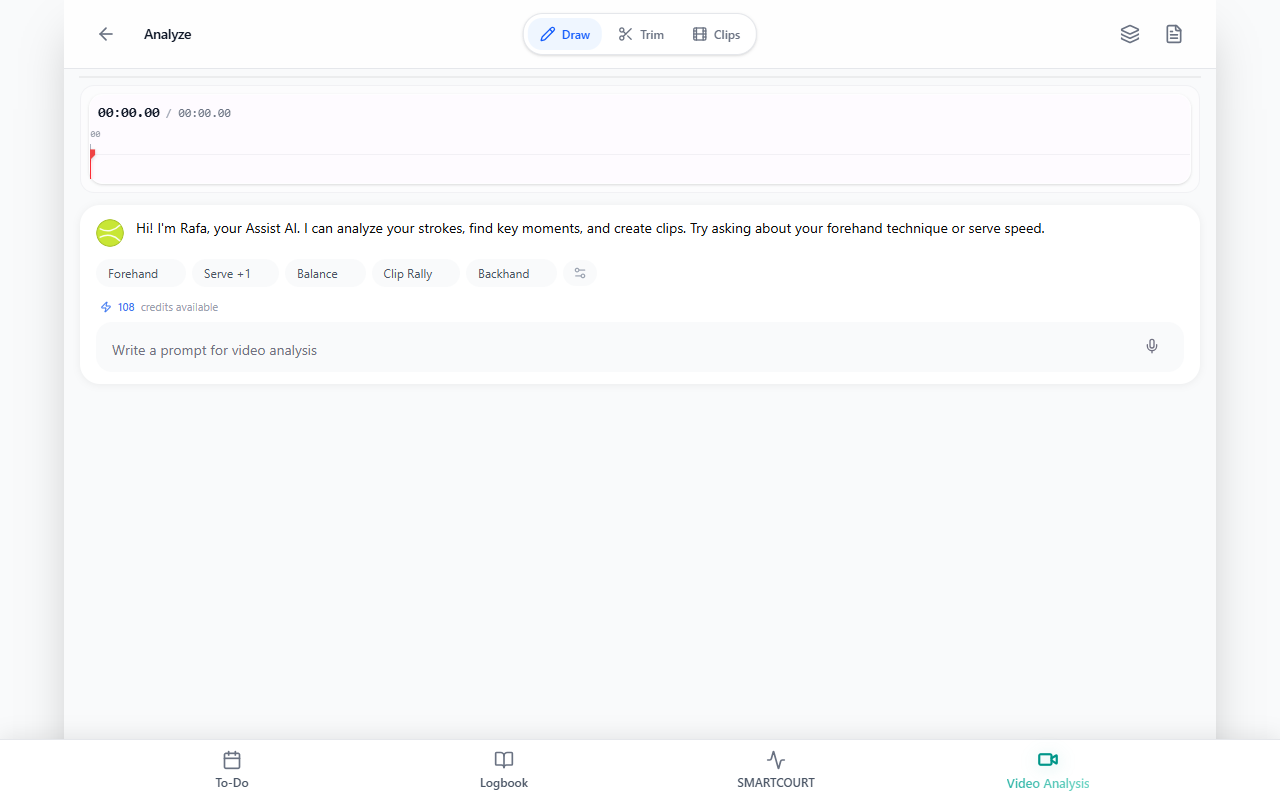
Assist lets you ask questions about the footage in plain language.
You can type your own question or use quick prompts when they are available. This makes it easier to explore patterns you might otherwise miss and gives users a second layer of review while keeping the coach’s judgment central.
Assist is especially useful when:
- an athlete wants a clearer explanation of what happened,
- a coach wants support spotting recurring patterns,
- a parent wants help understanding what they are seeing,
- or users want a more structured way to review a match or practice.
How to use Video Analysis
- Open Video Analysis — Tap Video Analysis in the bottom navigation.
- Add or choose footage — Use Add Video to start a new project, or open an existing project card.
- Import the right type of video — Choose Upload from device, Add from link, Record new video, or Add from session recordings.
- Open the project — After import, the project appears in your list. Tap it to begin review.
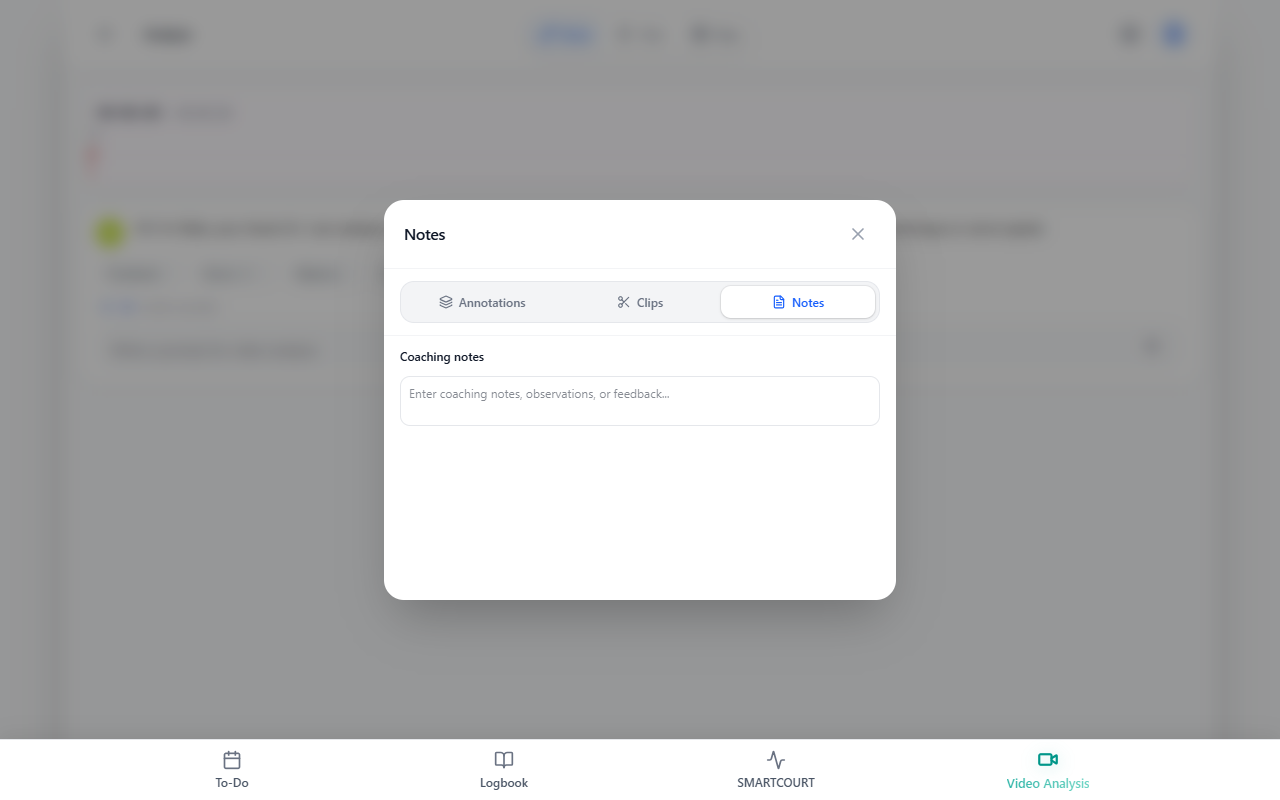
- Review the footage — Slow the video down, mark important moments, and add notes.
- Use Assist when helpful — Ask questions in plain language or use quick prompts to deepen the review.
- Apply what you learn — Use the analysis to guide the next practice, improve match preparation, review an athlete’s progress, or better understand a child’s development.
What happens next
Video review becomes more useful when it connects to the rest of the training process.
After analyzing footage, users can take that insight back into:
- Today for day-to-day execution,
- Development Plans for weekly structure,
- Training Hub for selecting or creating the right drills,
- and Logbook for broader review of sessions, matches, and analytics.
This helps Video Analysis function not as an isolated media tool, but as part of a larger development workflow.
Tips
- Upload the clearest footage you have so key movements and match patterns are easier to review.
- Use Video Analysis not only for your own training, but also for reviewing athletes you coach or children whose development you support.
- Review opponent footage when you want to prepare more intentionally for an upcoming match.
- Use notes and marked moments to make follow-up conversations more specific.
- Ask Assist focused questions so the review stays useful and relevant.
- Return to earlier projects over time to compare progress more clearly.
Related guides
- Logbook — review session history and open video-linked records.
- Today — apply review insights in the current training day.
- Development Plans — use video findings to shape the next week of work.
- Training Hub — choose drills and content that address what the video review reveals.
- Usage scenarios — story-style flows that include post-session video analysis.
- Core concepts and Interface overview — terminology and how the app fits together.
- Core concepts — shared definitions across the guides.